Swiss Post for WooCommerce
Documentation
Contents
- Introduction
- Installation
- API credentials
- Barcodes
- Generating labels
- Address validation
- Address autocomplete
- Frequently asked questions
- Address autocomplete or validation does not appear
- Are the labels protected?
- Address suggestions stop for a minute
- Generation stops with error E2002 or “The sender's city and/or postal code is not valid”
- “You do not have a franking licence for this delivery method”
- Another plugin replaces email sending (SMTP)
- The tracking number does not appear in emails
- Where can I find the details of an error?
- Are shipping costs calculated? Does the mailing type follow the customer's choice?
- Can labels be generated automatically?
- When is a label invoiced? Is there a test mode?
- Several parcels for the same order
- Can the label text be enlarged or its layout changed?
- The house number is missing on the label
- How do I prepare a return label?
- Which mailings are not supported?
- My credentials are rejected or I have lost them
- Version history
- Support
#Introduction
The official Swiss Post plugin connects your WooCommerce shop to Swiss Post's Digital Commerce API. It provides three services, which you enable separately:
- Barcodes: generates shipping labels (sender and recipient address, delivery method, options and tracking barcode) from an order or for several orders at once. No payment at the counter (Swiss Post invoices you monthly), no parcel number to copy, no address to type by hand.
- Address validation: at checkout, your customers check that Swiss Post knows their address.
- Address autocomplete: while the customer types, the postcode, town and street are suggested.
The plugin is published by FirstPoint Sàrl, on behalf of Swiss Post.
#Requirements
- WordPress 6.1 or later, WooCommerce 7.9 or later, PHP 7.4 or later.
- A billing relationship with Swiss Post (become a business customer).
- One or more franking licences, provided by your Swiss Post advisor. Letters and parcels have different licences.
- Digital Commerce API credentials (client identifier and client secret), to be requested with the Digital Commerce Plugin form. For barcodes, also request access to the barcode service.
If you already have your credentials and licences, go straight to installation.
#Supported mailings
Letters
- Post A+ (up to 25 × 17.6 cm, 1 to 250 g, at most 2 cm thick, see below for a thicker letter)
Parcels
- PostPac Priority and PostPac Economy
- Bulky goods Priority and Economy (shown as “Bulky goods Priority” and “Bulky goods Economy” in the interface)
- PostPac Priority GAS and PostPac Economy GAS (return labels)
- Swiss-Express “Moon” (shown as “Swiss-Express Moon” in the interface)
- Vinolog
Delivery options: Fragile, Manual processing, Signature, Saturday delivery.
These products are domestic mailings: the labels are valid for mailings within Switzerland and Liechtenstein, and the sender address must be in one of these two countries. Mailings abroad are not supported.
#Data sent to Swiss Post
To work, the services send some of your customers' data to Swiss Post:
- address autocomplete sends what the customer types in the postcode, town and street fields, during checkout
- address validation also sends their first name and last name
- a label sends the recipient's name, company and address, their email address (for Swiss Post notifications) and, with the notify-by-telephone handling option, their phone number.
Mention Swiss Post as a recipient of this data in your shop's privacy policy.
#Installation
#From the WordPress admin (recommended)
- In the WordPress admin, open Plugins › Add New Plugin, then click Upload Plugin.
- Choose the plugin's ZIP file and click Install Now.

- Click Activate Plugin.

WooCommerce must be installed and activated. Since WordPress 6.5, the plugin cannot be activated without it. On an older version, it activates but has no effect (no Swiss Post menu) until WooCommerce is active.
#Via FTP
If your hosting blocks uploads:
- Unzip the ZIP file on your computer. You get a
swisspostfolder. - With your FTP client, copy this folder into
/wp-content/plugins/. - In Plugins › Installed Plugins, activate “Swiss Post”.
To update, upload the new version and choose Replace current with uploaded: your settings and labels are kept.
#Deactivating or deleting the plugin
Deactivating the plugin (Plugins › Installed Plugins › Deactivate) keeps all your settings. Deleting it afterwards (Delete link) erases your API credentials, your franking licences and most of your choices of services and options. Other settings remain in the database and reappear if you reinstall the plugin: sender and return addresses, endpoint, printing formats, status after label creation, label logo, and the Post A+, Vinolog and Saturday delivery choices. To reinstall or change version without losing anything, update by uploading rather than deleting.
Labels already generated remain in wp-content/uploads/swisspost-labels/, and logos in wp-content/uploads/swisspost/. Labels contain your customers' names and addresses: delete these folders yourself (via FTP or with your hosting provider's file manager) if you no longer need them.
#Finding the configuration
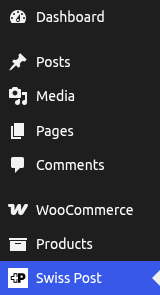
After activation, a Swiss Post menu appears in the admin sidebar. The Documentation link, at the top of the settings page, opens the plugin's online documentation.
#User permissions
- Administrators and shop managers (“Shop manager” role) generate and download labels from the orders.
- Only administrators change the settings, the API credentials and the franking licences.
#Multisite
On a WordPress multisite network, each site has its own settings, its own credentials and its own API access token, even when WooCommerce is network-activated. Configure the plugin on each site that uses it.
#API credentials
The first time you open the settings page, you are asked for your Digital Commerce API credentials.
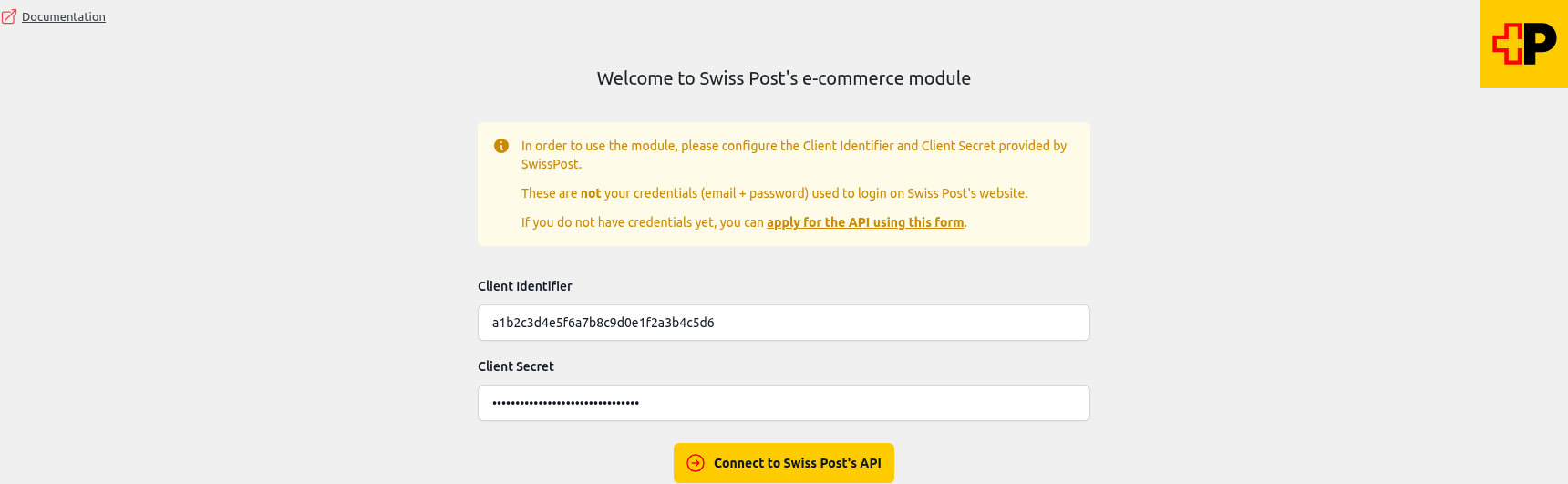
- Enter the client identifier and the client secret you received from Swiss Post (32 characters each).
- Click the button for connecting to Swiss Post's API, below the two fields.
These credentials are not the email address and password of your post.ch account. If you do not have them yet, see the requirements.
If the connection fails, check both values (no spaces before or after). If they are correct and the error persists, contact Swiss Post to confirm that your credentials are active. Your shop's server must also be able to reach Swiss Post's services over HTTPS (api.post.ch, dcapi.apis.post.ch and wedec.post.ch); if in doubt, ask your hosting provider.
Once the connection is established, a yellow button confirms it and shows the endpoint in use in brackets. Click it to change your credentials. The client secret is stored on your server and is never sent back to the browser.
#Services
Enable the services you want to use: label generation (barcodes), address autocomplete and address validation. Each card has its own switch, and your choice is saved as soon as you click it.

The Barcodes service needs further configuration, described in the Barcodes chapter. Both address services work as soon as they are enabled.
#Endpoints
The Advanced settings link, below the connection button, lets you choose the API endpoint. Since June 2023, Swiss Post uses DCAPI by default, instead of WEDEC. Only change this setting if Swiss Post has given you access to both and asks you to use WEDEC. An endpoint your credentials cannot access is flagged.
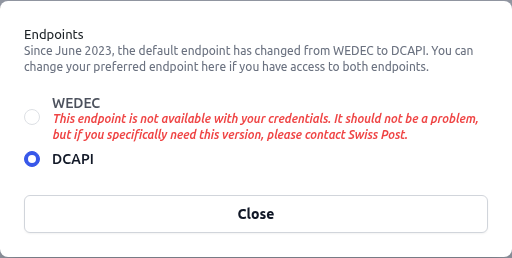
The endpoint is saved as soon as you select it. Then close the window with Close.
#Barcodes
The barcode service generates the shipping labels for your mailings: sender and recipient address, delivery method, options and tracking barcode. The tracking number appears in the plugin block on the order. It is only saved in the order data if the WooCommerce Shipment Tracking plugin is installed (see Shipment tracking).
#Configuration
As soon as the label generation service is enabled, the barcode configuration appears below the services. It is done in five steps, listed on the left. Each step is saved with its own Save changes button. An incomplete step is flagged in red, with a prompt to complete it.
#Franking licences
Add the licence numbers you will use to generate labels.
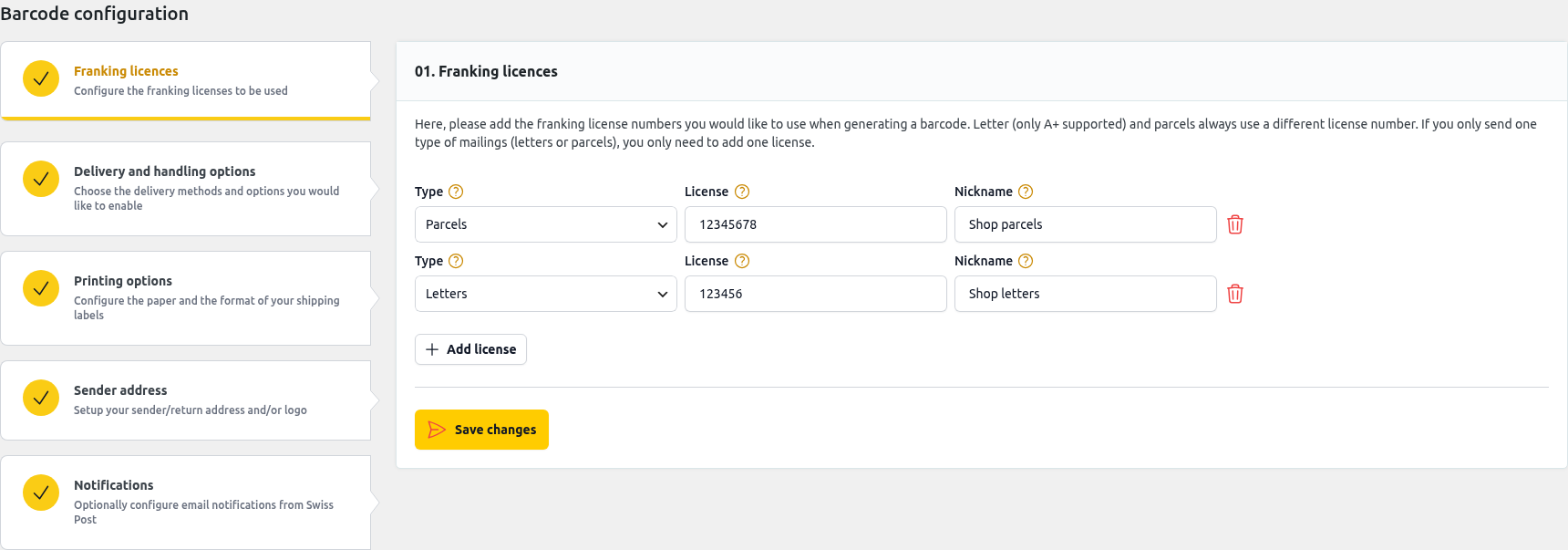
- Type: parcels or letters, as indicated by Swiss Post. Letters (only Post A+ is supported) and parcels always have different licences.
- License: the licence number, made up of 6 or 8 digits.
- Nickname (optional): a name to recognise the licence. It is shown in front of the number, in the form “nickname (number)”, in the list of licences when generating a label.
If you only ship one type of mailing (parcels or letters), a single licence is enough. With several licences, a list lets you choose which licence to use when generating each label.
The licences are checked with Swiss Post when saving. A rejected licence is flagged in red with a message: correct it or delete it, then save again.
A Post A+ label requires a letters licence, the other delivery methods a parcels licence. Add a licence of each type if you ship both.
#Delivery and handling options
Tick the methods and options that match your business.
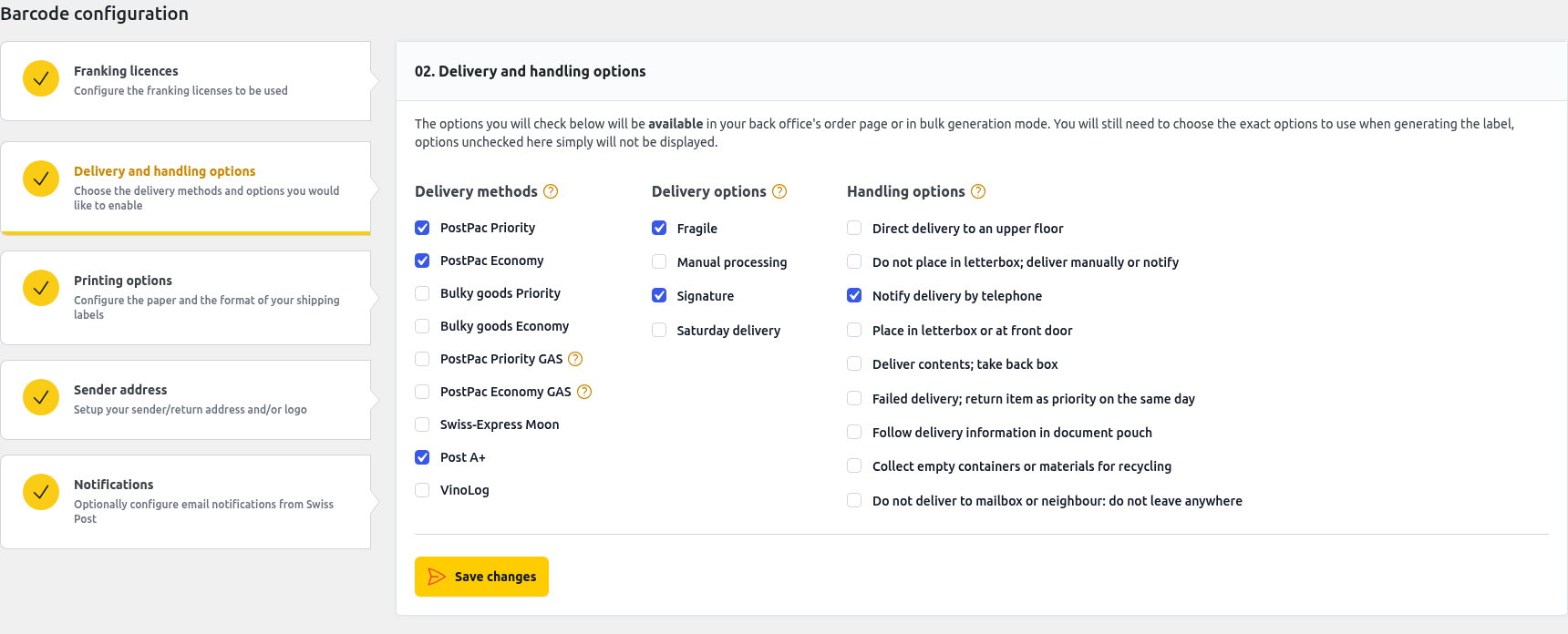
- Delivery methods determine the mailing type, delivery time and price.
- Delivery options determine how the mailing is processed (fragile, manual processing, signature, Saturday delivery).
- Handling options give instructions to the postman for delivery or return (delivery to an upper floor, do not place in letterbox, notify by telephone…).
What you tick here is not enforced: these methods and options will simply be offered when generating a label, on the order page or in bulk. Those you untick do not appear there.
GAS methods generate a return label: the recipient is the address from the “Sender address” step, and the sender is your customer's shipping address.
#Printing options
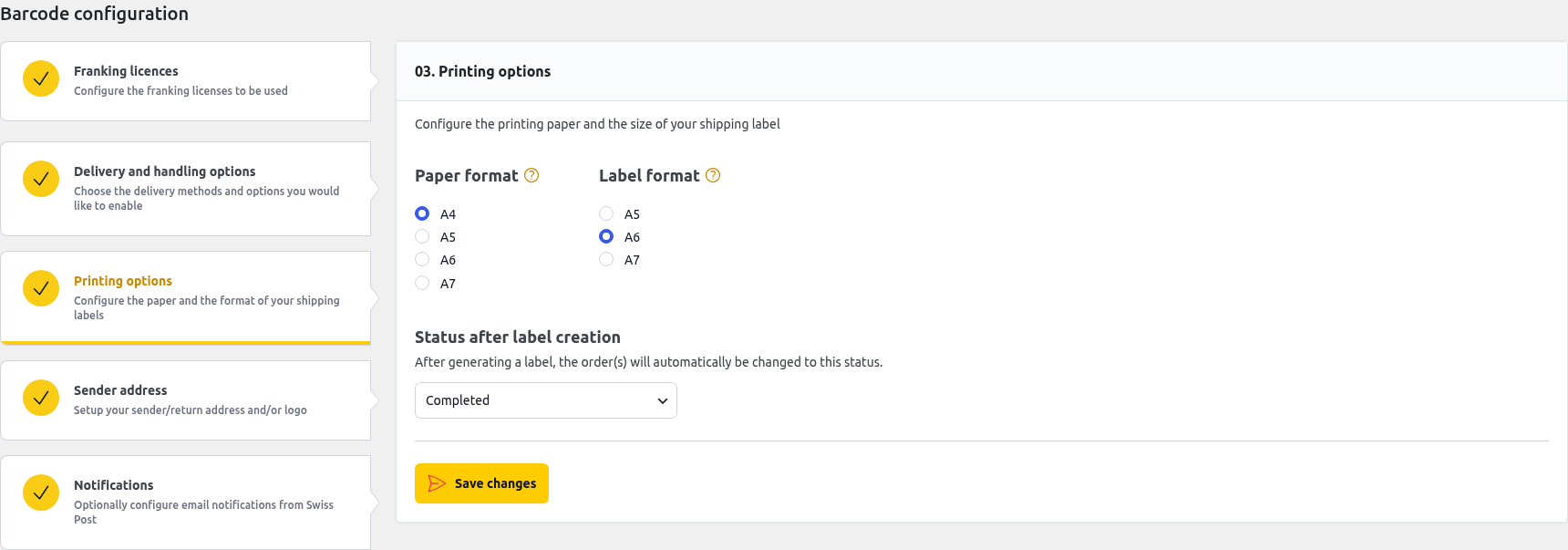
- Paper format: the size of the sheet you print on. With an A4 sheet holding 4 A6 labels, choose A4.
- Label format: the final size of the label. In the same example, choose A6. With a thermal printer, or if you print directly on the final format, choose the same format in both settings.
The A5 format is not available for letters.
Status after label creation: the status the order takes as soon as its label is generated. This is handy for bulk generation, as you do not have to change the status of each order. By default “Completed”. WooCommerce then sends the customer the email linked to this status, as for a manual change.
Choose “--” (at the top of the list) to keep the order's current status.
#Sender address
The address printed as sender on the labels. By default, it uses your shop's contact details.
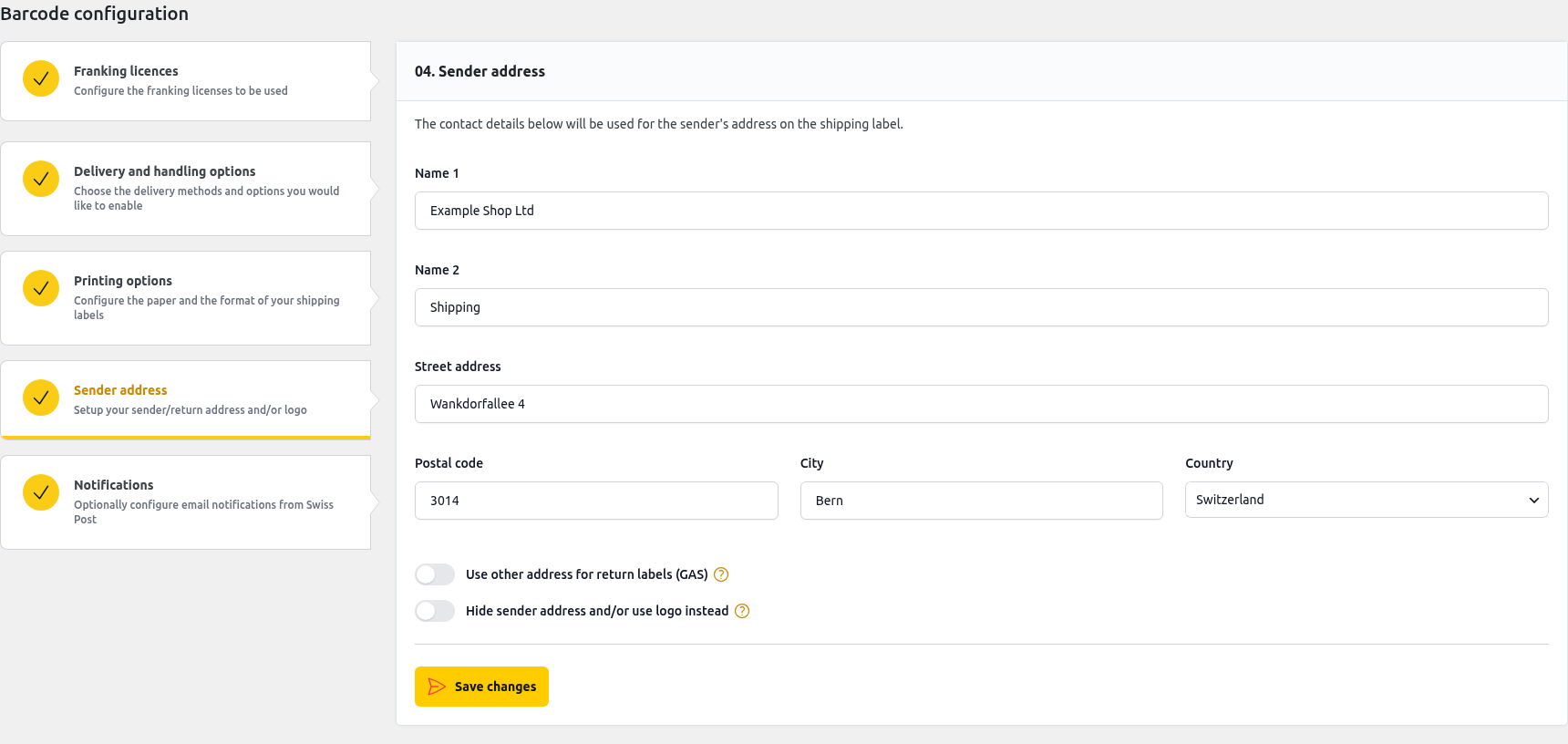
- Use other address for return labels (GAS): only if you use PostPac GAS. Without this option, return labels are addressed to the sender address.
- Hide sender address and/or use logo instead: without a logo, no sender address is printed; with a logo, the logo replaces the address.
The sender address must be in Switzerland or Liechtenstein.
Swiss Post requires the sender's postcode and town. If they are missing, generation stops with a message explaining why.
#Logo
In the same step, you can print a logo instead of the sender address. Turn on the Hide sender address and/or use logo instead switch: the logo field appears. The file must be a PNG or JPEG image of 50 KB at most.
Set its position with the rotation, the aspect ratio (Expand or Keep), the horizontal alignment and the vertical alignment.
#Notifications
Swiss Post can inform your customers by email about the progress of their mailing. This service is free of charge (Swiss Post no longer sends text messages). Notifications only reach customers who have enabled the “My consignments” service in their Swiss Post customer account; more information on post.ch.
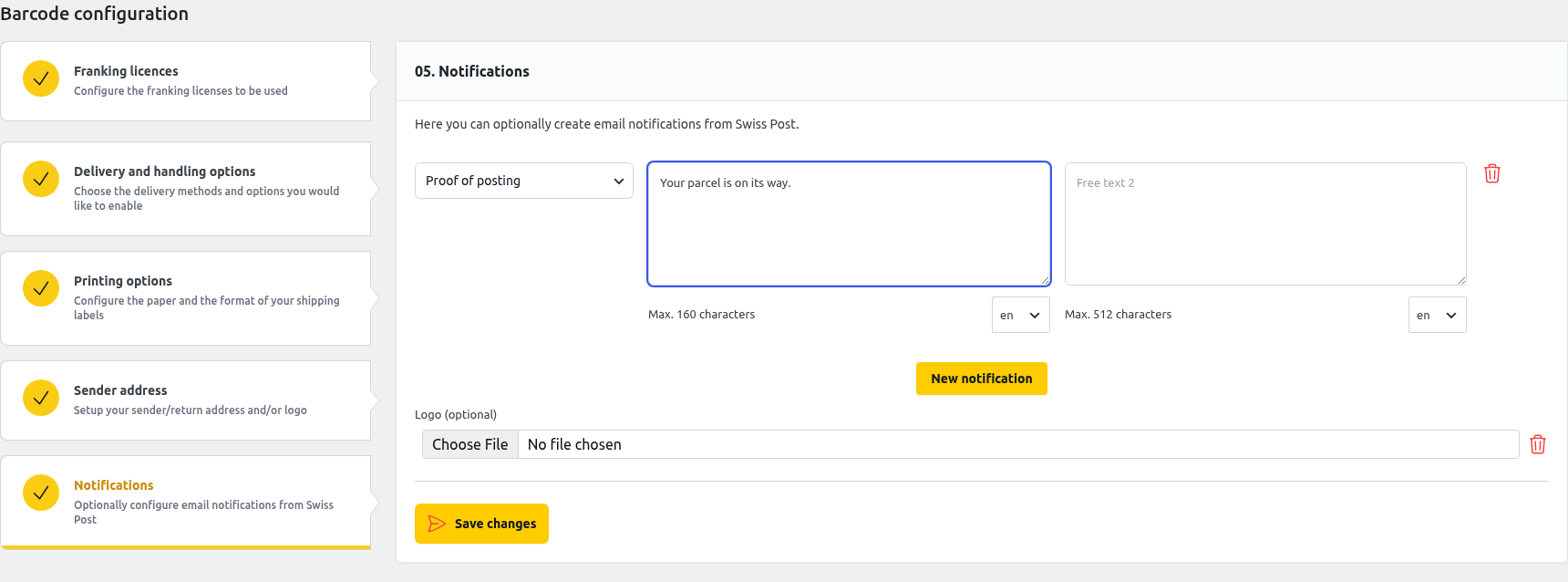
The notification logo is optional. In the current version of the plugin, this logo is not yet sent to Swiss Post; the fix is planned for the next version.
Then add as many notifications as you like with the add button:
- Service: the type of notification.
- Free texts (optional): for most notifications, up to two texts of your own (160 and 512 characters at most), included in the email.
The services offered are “Proof of posting”, “Delivery information”, “Collection information”, “Reminder of recipient” and “Handover status to sender”.
Free texts are entered per language, with the language selector next to the field. With WPML, the order's language is the WPML language. Without WPML, it is the language of the customer's account and, for an order placed without an account, that of the person who generates the label, so preferably enter the text in all four languages.
Notifications are never sent for Post A+ letters. Nor are they sent for GAS return labels.
#Generating labels
#For one order
Open the order in WooCommerce › Orders. The SwissPost barcodes block is below the order items.
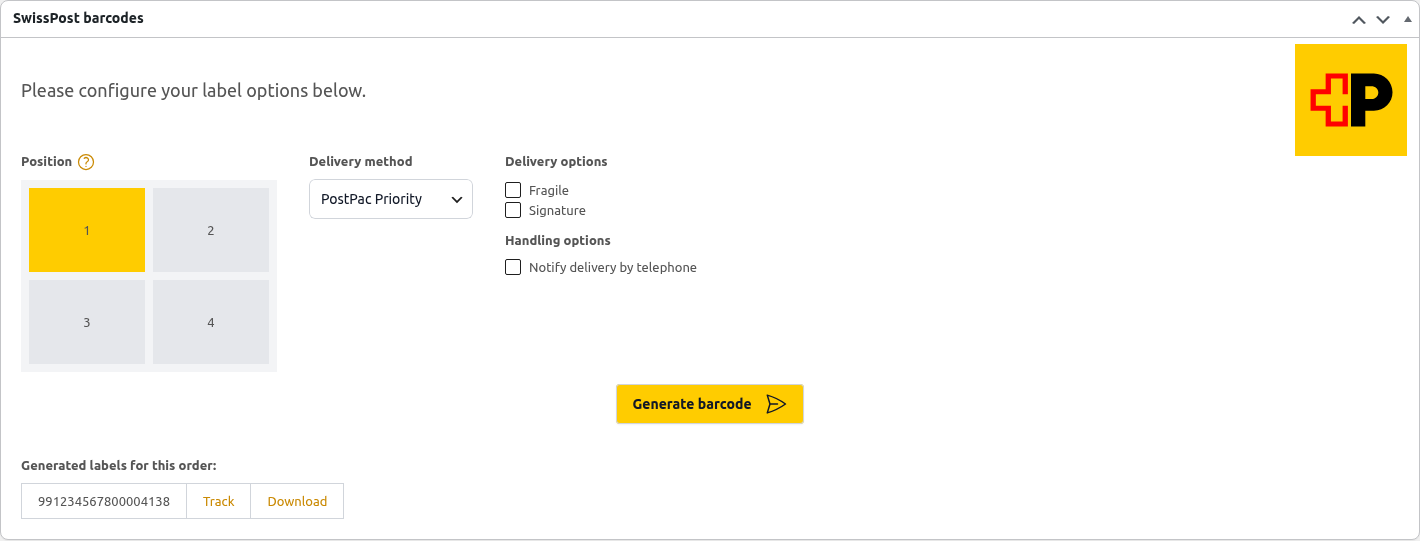
- Position: if your paper format holds several labels (for example 4 A6 on an A4 sheet), choose the label's position on the sheet. Handy for reusing a partly used sheet.
- Delivery method: among the methods ticked in the configuration.
- Franking license: if you have several licences of the right type.
- Delivery options and Handling options: tick those that apply to this mailing. Options incompatible with the selected delivery method are greyed out. Changing the delivery method unticks the options already ticked, so choose the method first.
- Click Generate barcode.
The label PDF downloads. If it does not start, click the link provided. The order changes to the status chosen in the printing options (“Completed” by default).
Labels already generated are listed under Generated labels for this order:, with a Track link (tracking the mailing on post.ch) and a Download link to reprint them.
The label uses the order's shipping address, or the billing address if the order has no shipping address. If Swiss Post rejects the label, the error message is shown in the block (incomplete recipient address, invalid phone number, missing licence…). Correct this address in the order, then generate again. See also the frequently asked questions.
#For several orders
- In WooCommerce › Orders, tick the orders to ship.
- In Bulk actions, choose Generate barcodes and click Apply.

- Choose the position of the first label, the delivery method and the options, then click Submit.
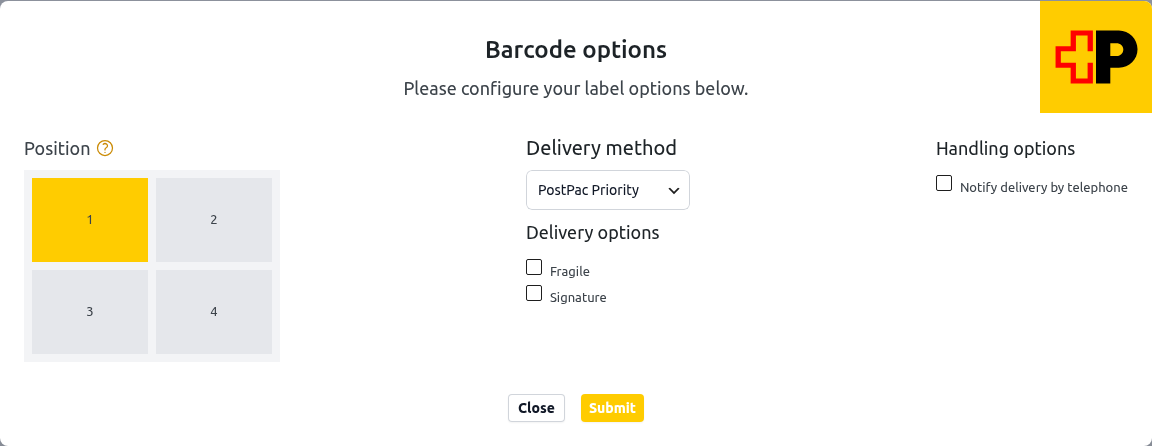
The same options apply to all labels. The labels follow one another on the next positions of the sheet, and a single PDF contains them all. If one order causes a problem, the others are generated and the error is listed with the order number.
The plugin works with WooCommerce High-Performance Order Storage (HPOS) as well as with the legacy storage.
#Shipment tracking
The Track link in the plugin block opens tracking of the mailing on post.ch. If the WooCommerce Shipment Tracking plugin is installed, the tracking number is also added to it automatically, with the carrier “Swiss Post” (name according to the admin language), and your customers find it in their emails and their account.
#Address validation
At checkout, a Swiss Post address validation button appears below the address form. Your customers can check that Swiss Post knows their address before placing their order. Nothing is mandatory: a customer can always order with an address that has not been validated.
Address validation and autocomplete work with the WooCommerce classic checkout ([woocommerce_checkout] shortcode). They do not appear in the block-based checkout yet, but customers can still place orders there.
#Enabling the service
Enable Address validation in the services. No other setting is needed.
#On the customer side
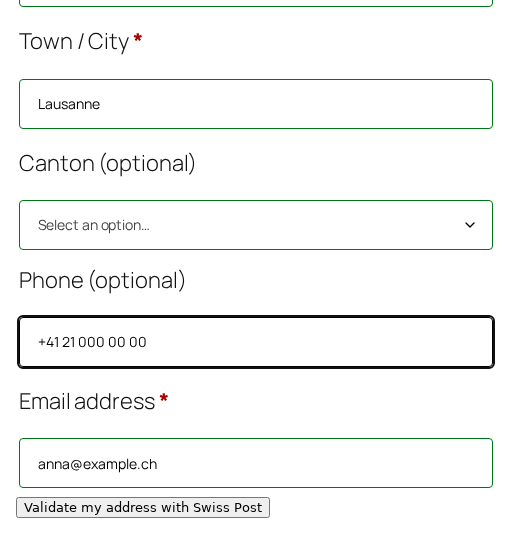
The customer fills in their address, then clicks the button. The button takes on the colour of Swiss Post's answer:
- green, certified: Swiss Post knows the address
- orange, usable: the address seems correct, but without guarantee
- red, unusable: the address is not known. The customer can correct it and validate it again.
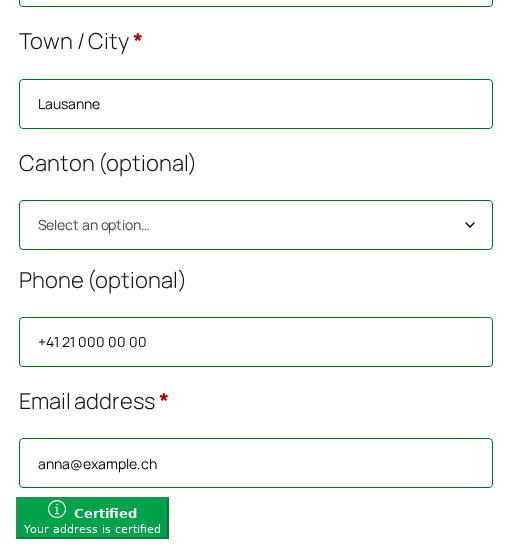
The button is offered for both the billing address and the shipping address.
The button only appears when the selected country is Switzerland or Liechtenstein.
#Address autocomplete
While the customer types their address at checkout, Swiss Post suggests matching postcodes, towns and streets. The customer picks a suggestion with one click: fewer typos, and addresses that Swiss Post recognises.
#Enabling the service
Enable Address autocomplete in the services. No other setting is needed.
#On the customer side
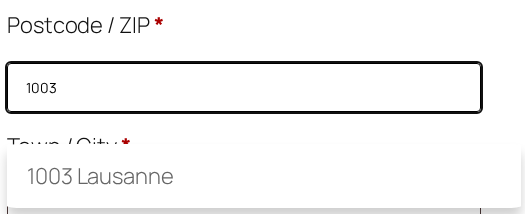
- Postcode → town: when typing the postcode, the customer sees the matching towns; choosing one fills in both fields. It also works the other way round, starting from the town.
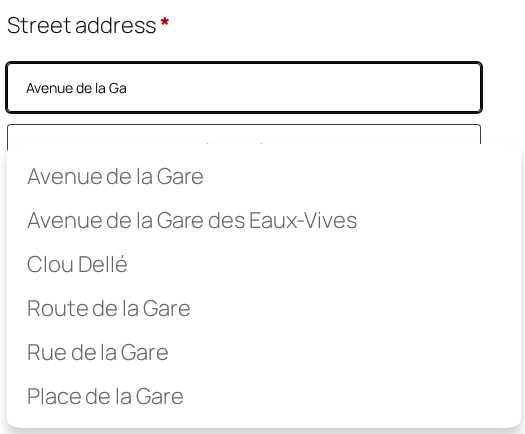
- Street: when typing the beginning of the street name, the customer sees the matching street names known to Swiss Post, from all over Switzerland. They pick theirs, then add the house number.
Suggestions are only offered when the selected country is Switzerland or Liechtenstein.
To protect your Swiss Post quota, each visitor (IP address) can send at most 60 requests per minute to the autocomplete service, and as many to the validation service, far more than needed to fill in an address. See the FAQ if your shop is behind a proxy.
#Frequently asked questions
#Address autocomplete or validation does not appear
They work with the classic checkout. If your checkout page uses the WooCommerce “Checkout” block, replace it with the [woocommerce_checkout] shortcode. Also check that the service is enabled and that the selected country is Switzerland or Liechtenstein.
#Are the labels protected?
Labels contain your customers' names and addresses. They are stored in wp-content/uploads/swisspost-labels/ and are only served to administrators and shop managers, from the order screens. On Apache, the plugin adds an .htaccess file that blocks direct access to this folder. Nginx ignores .htaccess files: add this rule to your server block, then reload Nginx.
location ^~ /wp-content/uploads/swisspost-labels/ { deny all; }
#Address suggestions stop for a minute
Autocomplete and validation call the Swiss Post API with your credentials. To protect your quota, each visitor (IP address) can send 60 requests per minute to each of these services. If your shop is behind a proxy that hides visitors' IP addresses, all your customers share this limit: raise it with the swisspost_front_rate_limit filter, or disable it by returning 0.
add_filter( 'swisspost_front_rate_limit', function () { return 300; } );
#Generation stops with error E2002 or “The sender's city and/or postal code is not valid”
Swiss Post needs the sender's postcode and town. Fill them in at the Sender address step.
#“You do not have a franking licence for this delivery method”
Post A+ requires a letters licence, the other methods a parcels licence. Add the missing licence at the Franking licences step. This message appears in the bulk generation window; on an order's page, Swiss Post returns an error about the licence.
#Another plugin replaces email sending (SMTP)
No problem: the Swiss Post plugin does not replace any WordPress functions, and lets SMTP, SSO or other plugins do their job.
#The tracking number does not appear in emails
After generation, the order takes the chosen status and WooCommerce sends the email for this status. The tracking number only appears in it if the WooCommerce Shipment Tracking plugin is installed (see Shipment tracking). Without it, add the number manually in a note to the customer, or adapt the WooCommerce email templates.
#Where can I find the details of an error?
Swiss Post API errors (connection, address autocomplete and validation) are recorded in WooCommerce › Status › Logs, source swisspost. Your customers only see a general message: the details are in this log. Attach it to your support request. If no connection succeeds, check that your server can reach api.post.ch, dcapi.apis.post.ch and wedec.post.ch over HTTPS.
#Are shipping costs calculated? Does the mailing type follow the customer's choice?
No. The plugin does not add a shipping method to the checkout and does not calculate shipping costs: you configure them in WooCommerce (WooCommerce › Settings › Shipping), with your zones, your rates and free shipping if you wish.
The Swiss Post delivery method (PostPac Priority, Economy, Post A+…) is chosen when generating the label: it is not derived from the shipping method chosen by the customer. Weight and dimensions are not sent: Swiss Post measures them when the mailing is posted.
#Can labels be generated automatically?
No. A label is generated from the order page, or in bulk from the order list. Nothing is triggered by a payment or a status change, and the PDF is downloaded: it is not sent directly to a printer or added to delivery slips. For a specific need, contact support.
#When is a label invoiced? Is there a test mode?
Generating a label costs nothing in itself: Swiss Post invoices the mailings it handles, according to your contract. A label generated by mistake and never posted is not used, just throw it away.
The plugin has no test mode. To try your printer and your formats, generate a label and do not post the mailing. The plugin does not delete labels: they remain listed on the order.
#Several parcels for the same order
Generate one label per parcel: each generation creates a new mailing with its own tracking number. All labels remain listed in the plugin block on the order.
#Can the label text be enlarged or its layout changed?
No. The label is an image produced by Swiss Post for the chosen format (A7, A6 or A5), with its own font, margins and line order. The order number does not appear on it. To fit a sheet or a physical label, it is slightly reduced: the text is smallest in A7. If legibility matters to you, choose A6.
For a label printer (thermal or other), choose the same format in Paper format and Label format (for example A6 for 105 × 148 mm labels), and print the PDF at actual size (100 %), without fitting to the page. Brand-specific formats, for example 62 × 100 mm, are not available.
#The house number is missing on the label
The label uses WooCommerce's standard address fields. The number must be in the Street address line, with the street. A separate house number field, added by a checkout customisation plugin, is not sent.
When the customer fills in the second address line, it is printed as the street line, and the first address line moves above it (handy for a “c/o”). If the printed address does not suit you, correct it in the order before generating the label.
#How do I prepare a return label?
- Tick PostPac Priority GAS or PostPac Economy GAS in the delivery methods.
- On the order, choose this method and generate the label.
The label is addressed to your sender address, or to the return address if you have set one. Put it in the parcel or send it to your customer later: nothing is sent automatically. The logo is not printed on return labels.
#Which mailings are not supported?
In addition to mailings abroad, the plugin does not handle the following mailings:
- A or B letters without a barcode, registered letters and WebStamp
- additional insurance (Ad valorem)
- VinoLog Priority (Vinolog and the Signature option are available)
- same-day delivery and delivery to a PickPost or My Post 24 address.
For a Post A+ letter thicker than 2 cm, choose the Manual processing option when generating the label. Swiss Post then charges a surcharge: ask your advisor about the accepted dimensions.
#My credentials are rejected or I have lost them
Only Swiss Post issues, renews and checks the API credentials: FirstPoint has no access to them. If you have lost them (when changing servers, for example), request them again with the Digital Commerce Plugin form, stating that it is a resend.
- The client identifier and the client secret are two different values: do not enter the same one twice.
- The “Invalid credentials” or
invalid_clientmessage comes from Swiss Post: your credentials are not recognised or not yet active. - The credentials of the former Swiss Post module (WebService user and password) do not work: you need Digital Commerce API credentials.
- An expired WooCommerce.com subscription does not stop the plugin: it only stops updates and support.
#Version history
The changes of each version, as released with each update.
#Version 2.4.2
26 October 2026
- Security: admin actions (settings, labels, label PDF) now require an admin nonce and the matching capability
- Security: shipping labels can no longer be downloaded directly from the uploads folder (Apache; see the FAQ for Nginx)
- Security: the Swiss Post client secret is no longer sent to the browser, and error messages no longer show server paths
- Security: the checkout address autocomplete and validation are rate limited per IP, check their input, return generic errors and display suggestions as text
- Fix: the plugin can be activated again on PHP 7.4 and 8.0, and no longer prevents SMTP or SSO plugins from overriding wp_mail() and other pluggable functions
- Fix: multisite: each site uses its own Swiss Post API tokens, and the plugin works when WooCommerce is network activated
- Fix: a token refused by the API is requested again, and the PHP session is no longer used
- Fix: HPOS: notifications use the order's WPML language (Italian supported), and bulk label generation works on WooCommerce 7.x
- Fix: address autocomplete and validation errors (PHP fatal error, cached API errors, missing customer name)
- Fix: German translation of the franking license error
- Update: Guzzle and TCPDF bundled under the plugin's own namespace to avoid conflicts with other plugins; no more PHP 8.5 deprecation notice
- Update: ZIP under 1 MB (installable with the default upload limit), with readme.txt and license; compatible with WordPress 7.1 and WooCommerce 11.2; French, German and Italian translations
#Version 2.4.1
31 March 2026
- Fix: improved label positioning on PDF with centered margins and per-size scaling (A7 90%, A6 97%, A5 100%)
- Fix: labels are now properly centered on the page instead of being aligned to the top-left corner
- Fix: label filenames are now normalized to avoid issues with special characters in ident codes
- Fix: added fallback resolution for legacy label filenames when downloading previously generated PDFs
- Fix: improved error handling during PDF generation with clearer error messages
- Fix: added validation to prevent errors when no labels are provided for PDF generation
- Update: barcode position selector in admin now correctly shows landscape or portrait orientation matching the actual PDF output (e.g. A6 on A4 = landscape)
- Update: cleaned up barcode generation code and removed unnecessary verbose comments
- Update: rebuilt admin assets (admin.js, admin.css)
#Version 2.4.0
4 November 2025
- New: added uploads path for file storage in Vue component
- Update: implemented asset versioning using SWISSPOST_VERSION constant
- Update: added email field and automatic cleanup in GAS recipient handling
- Update: added nonce and corrected AJAX URL in autocomplete request
- Update: refactored main classes under \FirstPoint\SwissPost\Api namespace
- Fix: conditional admin asset loading using get_current_screen()
- Fix: corrected Vue import casing for Barcode components
- Fix: disabled notifications for GAS shipments
- Fix: unified error handling in class-swisspost-api.php
- Fix: minor address field update behavior in autocomplete.js
- Update: updated WordPress compatibility to 6.7.1 and WooCommerce to 10.2.2
#Version 2.3.1
9 May 2025
- Enhanced security through improved input variable sanitization
- Removed Woo header (now automatically added during deployment)
- Fixed: PHP 8.4 compatibility issues with nullable parameters
- Fixed: Added fallback for base_url and endpoint validation to prevent null errors
- Fixed: GAS address layout display with company information
- Fixed: Labels now stored in uploads folder instead of module directory
- Fixed: Endless loading issue during initial connection
- Fixed: Barcode layout display issues
- Fixed: Address validator styling
- Fixed: Endpoint selection mechanism
- Added comprehensive documentation for WordPress.org plugin directory
#Version 2.3
9 April 2025
- Added saturday delivery, vinolog and manual processing for Aplus
- Fixed barcode layout and line definitions for Lichtenstein
- Fixed Barcode generation to align with HPOS system
- Remove sms notifications
- Get notification email from shipping address, invoice address or customer account
- Implemented new OAuth process for API
- Added server-side autocomplete and validator endpoint handling
- Implemented same domain policy for stores endpoint security
- Added OAuth token management with 5-minute renewal
- Added server-side Swiss Post API communication
- Added client-side module server communication
#Version 2.2
14 June 2024
- Fixed label downloads
#Version 2.1
16 April 2024
- Added compatibility with HPOS
- Fixed barcode notifications issues
- Added single quote to address form field character restriction list
- Added asset versioning to fix cache issues with updates
- Added documentation url
- Fixed technical term translations
- Fixed api sign up form url
#Version 2.0.2
22 November 2023
- Fixed authentification check when missing endpoint access
- Fixed activated services visual error
- Fixed barcode output buffer
- Fixed missing admin index filters
- Fixed validation button visibility when not LI or CH address
- Fixed WEDEC autocomplete endpoint
- Fixed default barcode state change value
- Fixed barcode download button
- Fixed address field autocomplete
- Fixed sender name2 field
- Added possibility to desactivate order state change
- Removed address form field reordering
#Version 2.0.1
15 November 2023
- Fixed license authentification
- Fixed missing translation strings
#Version 2.0.0
13 November 2023
- New user guiding/configuration interface
- Added possiblity to print multiple labels per page
- Added new DCAPI endpoints
- Added A+ letter delivery method
- Added dependency namespacing to prevent conflicts
- Added sender address and return address form
- Improved exception management
- Improved styling
- Removed test environment
#Version 1.4.1
10 January 2023
- WPF025: patch barcode address error from last release
#Version 1.4
9 December 2022
- WPF019: fix barcode issue with communications
- WPF020: Clean output buffer before PDF download
- WPF021: fix logo sizes
- WPF022: truncate company name on label
- WPF023: fix fatal error in validator for shops without address_2 lines
- WPF024: fix image size error
#Version 1.3
13 June 2022
- WPF011: Fix bulk reload issue
- WPF012: replace "|" character in shop name to avoid API error
- WPF013: fix media upload for > 5.8.X
- WPF014: Improve customer address truncation
- WPF015: Fix merging shipping and billing addresses bug
- WPF016: Fix safari barcode from list refresh issue
- WPF017: Company name first if available
- WPF018: Prevent global fatal error when generating multiple labels if one label contains an error
#Version 1.2
1 December 2021
- WPF002: Reload page after label generation or status updates
- WPF003: Set shipment number before status Changelog
- WPF004: Fix barcode customer name length
- WPF005: Encode PDF image to reduce impact of server configuration
- WPF006: Check for and create label folder to avoid GIT repository exclusions
- WPF007: Fix empty DynPic in barcode notifications
- WPF008: Fix empty communication method on notifications
- WPF009: Load scripts only on necessary admin pages to prevent conflicts
- WPF010: Fix address length limitations
- WPF011: Add address line 2 to labels
#Version 1.1
7 June 2021
- WPF001: Fixed "Failed to load PDF document" issue
#Version 1.0
20 April 2021
- Initial release
#Support
For any question or problem, open a request with WooCommerce support, stating your WordPress, WooCommerce and plugin versions, the error message displayed and, where applicable, the excerpt from the swisspost log (WooCommerce › Status › Logs).
For questions about your contract, your API credentials or your franking licences, contact your Swiss Post advisor.
#Copyright and licence
© FirstPoint Sàrl, on behalf of Swiss Post.
Plugin distributed under the GNU General Public License v2 (GPLv2).